Pages

Wednesday, January 20, 2016

Enable CORS for web API 2 through Azure portal

Introduction

We can enable Cross-Origin Request (CORS) by adding “Microsoft ASP.Net Cross Origin Support” nuget package. Also we can enable CORS thorough Azure portal if we have deployed our web API 2 in azure as a app service.

Enable CORS for web API 2 through Azure portal
  1. Login to your azure portal through a browser
  2. Go to app services and click on you app service where web api 2 is hosted.
  3. Go to setting page and scroll thorough
  4. You will find API section and under that you will find CORS (I have highlighted in yellow)

cors1

  1. Click on CORS and you can add one or more your client apps. Also you can * mark to grant access to all client applications.
cors2

Tuesday, January 19, 2016

Cannot open server “” requested by the login. Client with IP address “” is not allowed to access the server issue in Azure SQL Database

Problem

I created a windows forms application in my local machine and the database was deployed in Azure. Once I try to access the database from my local machine through the application I got the exception “Cannot open server “” requested by the login. Client with IP address “” is not allowed to access the server issue”. See the screenshot.
1

Solution

Step 1. Login to Azure portal and select your database. I have used the new Azure Portal.
Step 2. Select tools on from top menu.
image
Step 3. Once you select Tools the window will be expanded and will show “Open in Visual Studio”. Select it.
image
Step 4. Then click on Configure your firewall.
image
Step 5. Give any rule name and you can give your IP address range. Note that the Client IP address is your own IP address. You can set the rage using the client IP address shown in the portal.

Thursday, December 24, 2015

SP.Core.js file was not initialized during page post back in SharePoint 2013

Problem

Today we had an issue where the sp.core.js file was not initialized after the post back of a application page. So the other SharePoint JavaScript files like sp.js, sp.runtime.js threw errors (As in the screenshot below). So, the functionalities didn’t work as expected.

Capture

Environment

The sp.core.js file was referenced in the master page and our custom JavaScript file (the file where our functionalities are implemented. We were opening a modal pop up implementing some logics) was referenced in the aspx page. Our client wanted us to work only in the custom JavaScript file and not in the master page or in application page.

Solution 

We used registerSod function which is available in SharePoint Script On Demand (SP.SOD) framework in order to load build in SharePoint JavaScript libraries.
 
  1. /* SP.SOD.registerSod(key value (any unique string), path of the script file); --- */
  2. SP.SOD.registerSod('sp.core.js', '\\_layouts\\sp.core.js');
  3. /*  executeFunc is used to execute the file mentioned above. using dummy function --- */
  4. SP.SOD.executeFunc('sp.core.js', false, function () { });
  5. SP.SOD.registerSod('sp.js', '\\_layouts\\sp.js');
  6. SP.SOD.executeFunc('sp.js', false, function () { });
  7. SP.SOD.registerSod('sp.ui.dialog.js', '\\_layouts\\sp.ui.dialog.js');
  8. SP.SOD.executeFunc('sp.ui.dialog.js', false, function () { });

Reference

http://www.vlieshout.net/sharepoint-2013-lazy-loading-javascript/


Wednesday, December 23, 2015

Remote debug SharePoint Provider hosted add-in deployed in Azure

Steps

  1. Deploy your provider hosted add-in to azure website with the configuration setting as “Debug”. debug1
  2. On Visual Studio (My version is 2013) go to server explorer and sign into your azure subscription. imageimage
  3. Once you are success all your azure services will be listed. image
  4. Now right click on your azure website where the provider hosted app is deployed and click in the Attach debugger.  image 
  5. Now you can debug your provider hosted app
image

Wednesday, October 14, 2015

Microsoft SharePoint Server 2016 IT Preview is available in Azure Platform Gallery

SharePoint Server 2016 IT preview is available in Azure Platform which installs binaries in Windows Server 2012 R2 Datacenter. Here are the screenshots on creating virtual machine with SharePoint 2016 IT preview binaries. Once you create the VM you need to run the configuration wizard and follow the steps as here.

001


002


003


004

Wednesday, August 26, 2015

Installing SharePoint Server 2016 IT Preview

Introduction

After the announcement of SharePoint Server 2016 IT Preview, I tried to install a standalone SharePoint server. So here are the steps to install SharePoint 2016 IT Preview. 


Installing SharePoint 2016 Prerequisites

Step 01.
I created a azure virtual machine with Microsoft Windows Server 2012 R2.

Step 02
Installed MS SQL Server 2014

Step 03
Download and extract the ISO file using win rar.

Step 04
Double click on prerequisiteinstaller fle. You will get the below screen which asks to install SharePoint 2016 prerequisites. 

image

Step 05
Click Next

Step 06
Then License Terms and conditions screen will be displayed.


image
Check the accept the terms check box and click next.
Once you click “Next” button the prerequisites will start installing.
image
Once the prerequisites installed successfully; If you prompt to restart your server.
Click finish and restart your server.
image

Install SharePoint Binaries

Step 01
Double click the setup file.
You will be asked to enter the product key. You may give the below trail key if you don’t have any: NQTMW-K63MQ-39G6H-B2CH9-FRDWJ

image

Click Continue.

Step 02
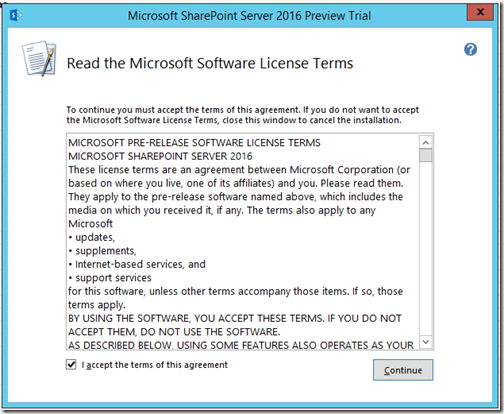
You will asked to accept agreement. Check the check box and click Continue again.
image

Step 03
image
If you want to select different locations for SharePoint binaries and Data you can select the location by clicking browse.
I’m not changing anything here. Click “Install Now” to continue.
image
Once I click “Install Now” the installation starts.

Step 04
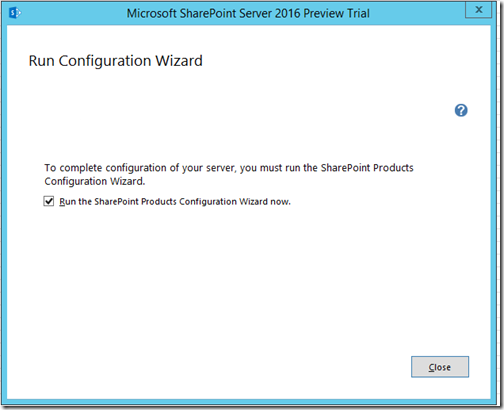
Now we will get the screen for running the configuration wizard.
image
I will check the check box and click close, So that the binaries are installed successfully and the configuration wizard will start running.

Running the configuration wizard

Step 01
Below is the first screen. Click Next

image
image
Click Yes
Step 02
image
The next screen will be as above. Since this is new server farm, I will select the second option and click next.
Step 03
The next screen is to give database server and database name. You have to give your server name where you had installed MS SQL Server.
image
Step 03
Then you have to give the unique passphrase. Type a passphrase which you can remember. Then click next.
image
Step 04
Next one is very important screen where we have to select the server role. Since my environment is a Single server farm I will select the last option. 

image
Click Next

Step 05
The next screen to enter the central administrator port number and to select the authentication type.
image

Next Screen will be the summery
image
Click Next and the configuration wizard will start running.
image
Once the setup is success, we will get the below screen.
image
Click Finish.
Once you click finish your browser will open and your central administrator will be loaded.
 image


Now you can play around your SharePoint 2016.

Tuesday, August 25, 2015

SharePoint 2016 Software Prerequisites | SharePoint Server 2016 IT Preview


Introduction

After the announcement of the availability of SharePoint Server 2016 IT Preview yesterday (24th August 2016) I downloaded the setup and tried to install, to see what the software prerequisites; which I got the below screen where it lists the software prerequisites.

image


Software Prerequisites

• Application Server Role, Web Server (IIS) Role
• Microsoft SQL Server 2012 Native Client
• Microsoft ODBC Driver 11 for SQL Server
• Microsoft Sync Framework Runtime v1.0 SP1 (x64)
• Windows Server AppFabric
• Microsoft Identity Extensions
• Microsoft Information Protection and Control Client 2.1
• Microsoft WCF Data Services 5.6
• Microsoft .NET Framework 4.5.2
• Cumulative Update Package 1 for Microsoft AppFabric 1.1 for Windows Server (KB2671763)
• Visual C++ Redistributable Package for Visual Studio 2013
• Update for Microsoft .NET Framework to disable RC4 in Transport Layer Security (KB2898850)

Await for updates on SharePoint 2016 IT preview.