Pages

Showing posts with label Office 365. Show all posts

Tuesday, July 24, 2018

Sri Lankan Tech Summit – 2018

I will be speaking at Sri Lankan Tech Summit – 2018 along with local and international MVPs and MCTs.

Title: Microsoft Office 365 Administration and Development

Venue: Batticaloa Public Library Auditorium
Date: 29 July 2018
Time: 09.00 am to 4.30 pm

Event Url: http://techeventsrilanka.com/tech-talk/

Sri Lankan Tech Summit Suhail Jamaldeen Suhail Cloud SuhailCloud

Clicks during the event

Sri Lankan Tech Summit - Suhail Jamaldeen -Suhail Cloud (1)Sri Lankan Tech Summit - Suhail Jamaldeen -Suhail Cloud (2)Sri Lankan Tech Summit - Suhail Jamaldeen -Suhail Cloud (3)Sri Lankan Tech Summit - Suhail Jamaldeen -Suhail Cloud (4)Sri Lankan Tech Summit - Suhail Jamaldeen -Suhail Cloud (6)Sri Lankan Tech Summit - Suhail Jamaldeen -Suhail Cloud (7)Sri Lankan Tech Summit - Suhail Jamaldeen -Suhail Cloud (8)Sri Lankan Tech Summit - Suhail Jamaldeen -Suhail Cloud (9)Sri Lankan Tech Summit - Suhail Jamaldeen -Suhail Cloud (11)Sri Lankan Tech Summit - Suhail Jamaldeen -Suhail Cloud (13)

Album

https://www.facebook.com/pg/Suhail.Cloud/photos/?tab=album&album_id=742704072756126&__tn__=-UC-R


Tuesday, March 13, 2018

MS Flow doesn't allow adding @ sign in the body of HTTP Action

Introduction

I was trying to call a rest api call through HTTP action in Microsoft Flow. I had to use "@odata.id" as a parameter.

Problem Background

After adding "@odata.id" I tried to save the Flow, when I tried to save I got the below error message.
“The template validation failed: 'The template action 'HTTP_-_Add_User' at line '1' and column '5342' is not valid: "Unable to parse template language expression 'odata.id': expected token 'LeftParenthesis' and actual 'Dot'.".'.”


Solution

You will have to add two @ signs as give below.
"@@odata.id"

Wednesday, February 14, 2018

Sri Lanka SharePoint Forum monthly gathering – February 2018

Title: Office 365 CLI: Managing Office 365 tenant and SharePoint Online

Description: Office 365 CLI is an open-source project driven by the SharePoint Patterns and Practices initiative. Using the Office 365 CLI, developers can manage the different settings of SharePoint and Office 365 no matter if they use Windows, macOS or Linux. In this session we are going to look at some cool features of Office 365 CLI.

Event Url: https://www.facebook.com/events/1880475591994592/

Office 365 CLI - Managing Office 365 tenant and SharePoint Online - Suhail Jamaldeen - Suhail Cloud - SharePoint Forum Sri Lanka

Slides which used for the event.

Clicks during the event

Office 365 CLI Managing Office 365 tenant and SharePoint Online - Suhail Jamaldeeen - Suhail Cloud (6)Office 365 CLI Managing Office 365 tenant and SharePoint Online - Suhail Jamaldeeen - Suhail Cloud (2)

Sunday, January 21, 2018

Trigger a Microsoft flow only when a SharePoint list item is modified – An alternative approach

Introduction

One of my friend asked me whether there is a Microsoft flow action to trigger the flow only when a SharePoint Online list item is modified. Unfortunately there is no out of the box trigger available.

Solution

We can overcome this by adding a condition at the beginning of the flow - we have to check whether the created date time and modified date time are not equal. So the flow will execute only if the created time and modified time is not equal.

Please check the below screenshot for the reference.

Suhail Cloud - January 2018


Saturday, December 9, 2017

Make password expire and force users to change them - Office 365

Introduction

One of my clients want his users’ to change their password every 45 days as a part of their company policy.

Solution

In Office 365 admin center, under setting select “Security & privacy”.

image

There under Password policy you can set the days by clicking on Edit.

image


Thursday, December 7, 2017

Prevent users from creating Team, Communication Sites from SharePoint Online home page

Introduction

Users can create SharePoint Online Team site or Communication site by clicking the “Create Site” icon in the SharePoint Online Home page.

image


Problem
Some of the organizations want to prevent users from creating sites from the home page.

Solution

  1. Go to SharePoint admin center
  2. Click on “Settings”
  3. Select “Hide the Create site command” under Site Creation

image

Click OK button form the bottom

Conclusion

Create site Icon is in visible.

image


Monday, November 6, 2017

List all “Docs I'm following” in Office 365 | SharePoint Online | OneDrive for Business

Introduction
We can follow documents in a SharePoint online. So that all the documents we follow will be referenced in OneDrive for business; which leads to easy access.
Problem
Till today, there no navigation option available to see all the following document in Modern Experience.
image
Solution
To over come it you have to switch to Classic OneDrive (See the above image and click on the text highlighted in yellow).
Now you can see a new navigation option added on the left as ‘Followed”.
Click it and you can see the documents you are following.
image


Sunday, October 29, 2017

IDM Knowledge Share – Team Collaboration in Office 365

I will be conducting a workshop on “Team Collaboration in Office 365”, as a part of IDM Knowledge Share.

Date: 29th of October 2017

Time: 10 am to 12 noon

Venue: IDM Nations Campus, Kotahena

Event Post Url: https://www.facebook.com/idmnc/posts/1586187304737107

IDM Nations Campus - Suhail Jamaldeen - Suhail Cloud


Updated On: 29th of October 2017
Slide deck used for the event


Some clicks during the event
Suhail Jamaldeen - Suhail Cloud - IDM Knowledge Share (1)Suhail Jamaldeen - Suhail Cloud - IDM Knowledge Share (2)Suhail Jamaldeen - Suhail Cloud - IDM Knowledge Share (3)Suhail Jamaldeen - Suhail Cloud - IDM Knowledge Share (4)Suhail Jamaldeen - Suhail Cloud - IDM Knowledge Share (5)Suhail Jamaldeen - Suhail Cloud - IDM Knowledge Share (6)Suhail Jamaldeen - Suhail Cloud - IDM Knowledge Share (7)Suhail Jamaldeen - Suhail Cloud - IDM Knowledge Share (8)Suhail Jamaldeen - Suhail Cloud - IDM Knowledge Share (9)Suhail Jamaldeen - Suhail Cloud - IDM Knowledge Share (10)Suhail Jamaldeen - Suhail Cloud - IDM Knowledge Share (11)

Thursday, October 12, 2017

Prevent users from creating Site Pages – SharePoint admin center in Office365

Introduction

Usually users who have permission level greater than Contribute (Contribute, Edit, Design, Full Control) level will be able to create Site Pages in a SharePoint site.

Creating site pages feature can be disabled from SharePoint admin center, so that any user will not have the option to create site pages.

Steps

  1. Go to SharePoint admin center in Office 365
  2. Go to settings

  3. Prevent users from creating Site Pages–SharePoint Online 1
  4. Under section “Site Pages”
  5. Select ”Prevent users from creating Site Pages”

  6. Prevent users from creating Site Pages–SharePoint Online 2
  7. Click OK at the bottom
  8. Now your users including the site collection administrators will not see create Site Pages option from the “New” dropdown action.

    Prevent users from creating Site Pages–SharePoint Online 3
What does “Prevent users from creating Site Pages” in SharePoint admin center option do?
  • It prevent users from only creating Site Pages (which are modern site pages), the users can create Wiki Pages and Web Part Pages

    Prevent users from creating Site Pages–SharePoint Online 4


Saturday, September 9, 2017

WebHooks in SharePoint Online – Post 1 – Introduction

“WebHooks in SharePoint Online” will be a series of blog posts.

  1. WebHooks in SharePoint Online – Post 1 – Introduction

This is the first post of the series and this post will be on introduction to SharePoint Online WebHooks.

Introduction to WebHooks

WebHooks are HTTP services where the subscribers will notified of events happening. Not only Office 365 or SharePoint uses WebHooks, but it’s a universal model used by Facebook, GitHub, MailChimp etc.

Introduction to WebHooks in SharePoint Online / SharePoint Online WebHooks

WebHooks in SharePoint Online are used for Document Libraries or lists. WebHooks in SharePoint Online are asynchronous event supported, which means that the notification is pushed to subscribers when items are added, updated, deleted or moved. WebHooks in SharePoint Online are not synchronous (“-ing”) event supported. Microsoft recommends Remote Event Receivers for synchronous events.

Why WebHooks over Remote Event Receivers

  • WebHooks are easier to consume by “non-SharePoint” developers

Advantages of SharePoint Online WebHooks

  • Easy to subscribe and push notification
  • Automatic retry is available on failure up to 5 minutes
  • Deleted event is available
  • Universal model
  • Can be used in modern SharePoint development stack such as SharePoint Framework

Disadvantages of SharePoint Online WebHooks

  • The subscription period will be expired automatically in 6 months and the subscribers have to re subscribe.
  • You cannot use webhooks to cancel an operation.
  • SharePoint Online lists and libraries are available.
  • No synchronous method is supported.
  • Acknowledgement must be received quickly within 5 seconds.
  • Subscription and notification uses the same url. The developers should implement their own logics to differ the calls.

Keep in mind when you develop solutions using WebHooks

  • WebHooks are only for asynchronous calls
  • Send the acknowledgement within 5 seconds
  • Implement a way to update the subscription if it is about to expire.

Friday, August 4, 2017

SharePoint Modern Page Quick links web part missing Layout option?

Introduction

Some of the Microsoft documented features, which are related Office 365 to are not available for some tenants. I noticed that from SharePoint Online modern experiences – some of the features were missing. Here is the conversation I started.

It’s because my tenant is not configured to First Release. 

First release candidates receives the Office 365 updates immediately.

Problem

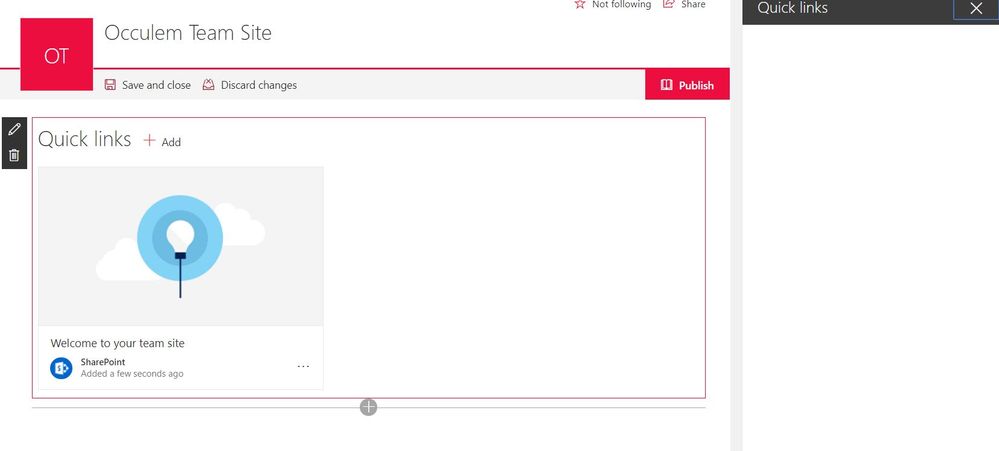
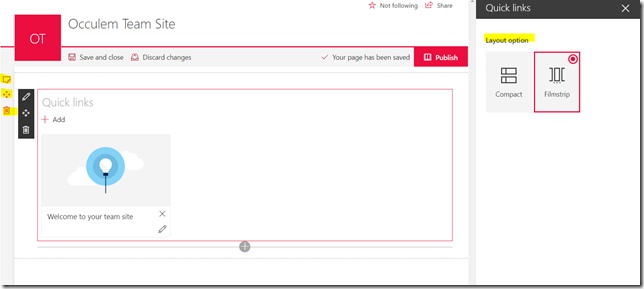
According to support.office.com, Quick links web part in SharePoint Modern Pages should show a "layout" option where we can select either Compact or Film Strip. But my development site and client's site doesn't show such options. Any idea?

My developer site is given below.
Capture.JPG

Solution

I added my tenant to “First release for selected users” in Office 365 Admin Center.

Step 01. Go to Admin Center from the Quick Launch

Step 02. Select “Organization profile” under Setting.

imageStep 03. Under Release preferences, select Edit under Actions dropdown

image

Step 04. Selection the option “First release for selected users” and click Next

image

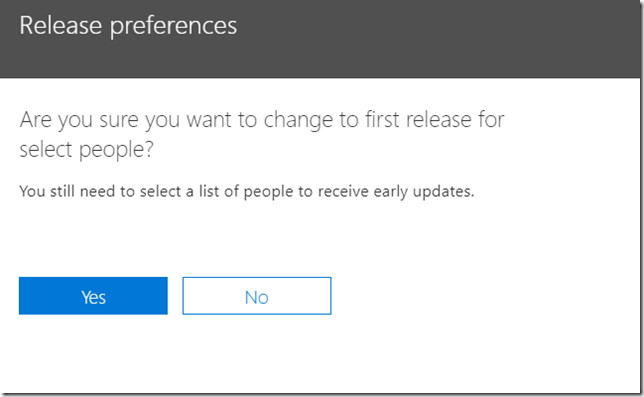
Step 05. Click Yesimage

Step 06. Then you have to add people. I have added people who are managing sites, because they are the people who are going to customize the sites.  

And then Hit Save

image


Conclusion

Once I did the above configuration, I was able to see the First Release features in my Office 365 Tenant. It may take some time.
image


Saturday, July 22, 2017

Develop SharePoint Framework projects in Visual Studio 2015/2017

Introduction

You will come across so many tutorials on SharePoint Framework (SPFx) which were illustrated using “Visual Studio Code”. But don’t worry you can develop SPFx projects using Visual Studio.

Recently “SPFx Project Template for Visual Studio” was released in GitHub. In this post we are going to see how to install “SPFX Template” and create a new SPFx project after installing the extension.

As of today the extension supports Visual Studio 2015 and Visual Studio 2017.

Steps

Step 01

Go to GitHub Releases page and download the latest .vsix file. Reason for downloading from GitHub is that you may not find the latest in Visual Studio Extension Gallery.

image

Step 02

Double click on the download template and install.

Select the Products and click install.

image


Step 03

Open Visual Studio and add New Project (File –> New –> Project)

Under Templates you will see “SharePoint Framework”. Select it and click OK

image

Step 04

Then you have to Select a framework which you are going to use; Give Component Name and Component Description.

Also you can select the check box if you don’t want to install Dependencies. Usually installing dependencies make our life easier, So keep it as it is.

Click on Generate.

image

Conclusion

It took me around 15 minutes to create a new project. So keep calm when you are trying to create a new project.

Your solution will be looking as below and you can start working on the solution.


image


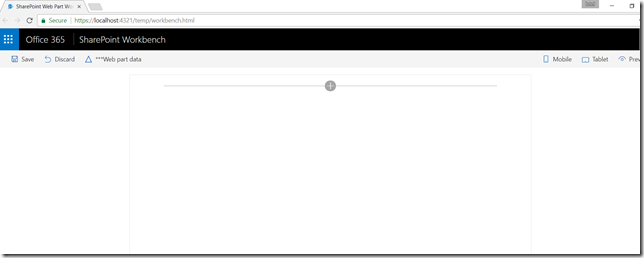
Run the project by clicking “Start” and your first Workbench project will be opened in the browser.

image

By clicking on + You can add SPFx webpart.