Pages

Showing posts with label SharePoint 2013. Show all posts

Tuesday, September 20, 2022

Cannot read configuration file because it exceeds the maximum file size - SharePoint Central Admin not loading

Problem Background

I was patching SharePoint 2013 servers, after completing the patching and running the PS Config the central admin didn't load and it was giving the below error. 


Solution

  • Create a Key named Configuration under HKEY_LOCAL_MACHINE\ SOFTWARE\Microsoft\InetStp
  • Create a DWORD and add the key as MaxWebConfigFileSizeInKB add the value as 300
  • Save


Monday, October 30, 2017

Add web part in html file of custom page layout in SharePoint Online

Introduction

I followed this post to create custom page layout.

Problem Background

I wanted to add web parts to that custom page layout, so that if a user create any page selecting the specified custom layout those web parts will appear by default.

Solution

The solution I did was, to add HTML snippets in the page layout through SharePoint Designer 2013.

Steps

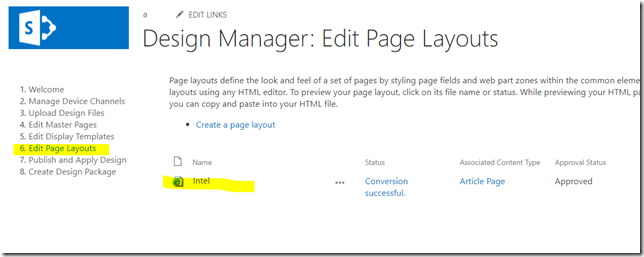
1. Go to Design Manager

Site Setting –> Design Manager

2. Go to Edit Page Layouts and Click on the custom page layout you created (In my case it’s “Intel”)

image

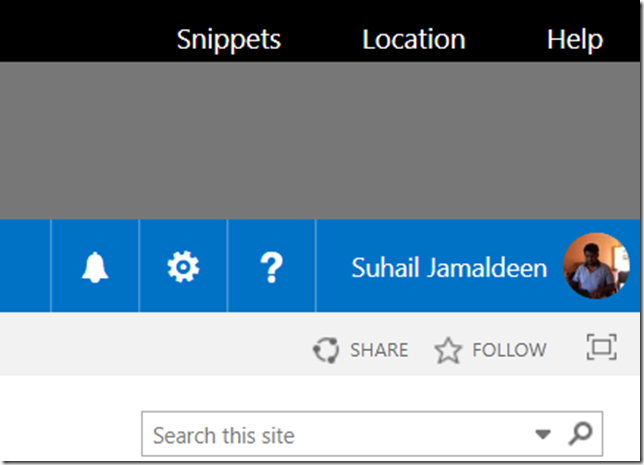
3. Then click on the “Snippets” at the top. Once you click, a page will open in a new tab.

image

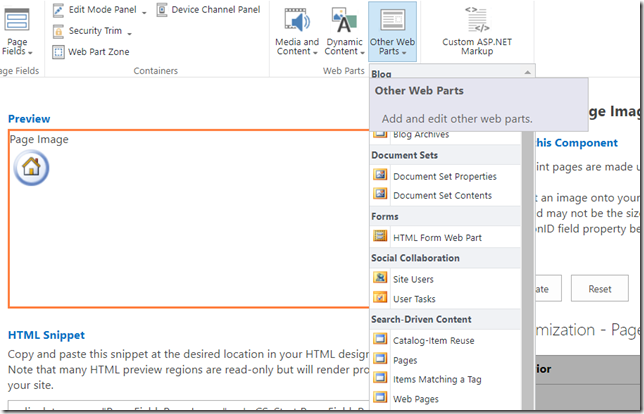
4. Select the web part you want to add.

image


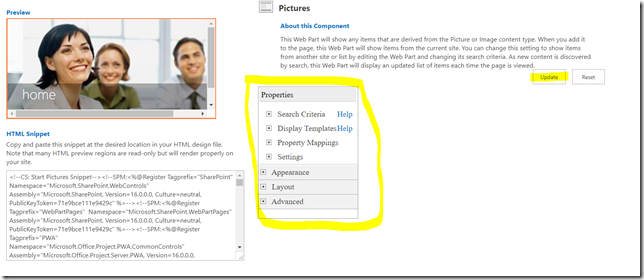
5. Depending on the web part you selected, you will be allowed to select and set the properties. Change  the properties and click on update.

image

6. Once you click on “Update” button the HTML snippet for the web part will be rendered under HTML Snippet section. 

7. Copy that HTML snippet.

8. Open the SharePoint designer and Edit the page layout. Paste the copied HTML inside the div of PlaceHolderMain or any other location as your wish.

9. Close it and publish the page layout as the major version.

Conclusion

Now your web part is added to the page layout.

Tuesday, September 5, 2017

Access SharePoint group users from SharePoint Hosted Add-in through Rest API

Introduction

I was using SharePoint rest api in order to read the users from a SharePoint group.


   var url = _spPageContextInfo.webAbsoluteUrl + "/_api/web/sitegroups/getbyname('" + groupName + "')/users";


We can use the Add-in web url since the groups are inherited from the parent site (Host web) to the add-in web.

Problem

When a user (other than the site collection administrator) try to access the above rest url, it throws access denied exception.

Access denied when trying to get users from SharePoint group


Solution

Step 1

Go to “People and groups” under Site Setting.

Step 2

Select the group and then go to “Group Setting” under Setting.

image

Step 3

Then select “Everyone” radio button for the "Who can view the membership of the group?" option.

image

Step 4

Click OK

Conclusion

Now other users also will have  the permission to read the users in the group.

image

Saturday, July 22, 2017

Develop SharePoint Framework projects in Visual Studio 2015/2017

Introduction

You will come across so many tutorials on SharePoint Framework (SPFx) which were illustrated using “Visual Studio Code”. But don’t worry you can develop SPFx projects using Visual Studio.

Recently “SPFx Project Template for Visual Studio” was released in GitHub. In this post we are going to see how to install “SPFX Template” and create a new SPFx project after installing the extension.

As of today the extension supports Visual Studio 2015 and Visual Studio 2017.

Steps

Step 01

Go to GitHub Releases page and download the latest .vsix file. Reason for downloading from GitHub is that you may not find the latest in Visual Studio Extension Gallery.

image

Step 02

Double click on the download template and install.

Select the Products and click install.

image


Step 03

Open Visual Studio and add New Project (File –> New –> Project)

Under Templates you will see “SharePoint Framework”. Select it and click OK

image

Step 04

Then you have to Select a framework which you are going to use; Give Component Name and Component Description.

Also you can select the check box if you don’t want to install Dependencies. Usually installing dependencies make our life easier, So keep it as it is.

Click on Generate.

image

Conclusion

It took me around 15 minutes to create a new project. So keep calm when you are trying to create a new project.

Your solution will be looking as below and you can start working on the solution.


image


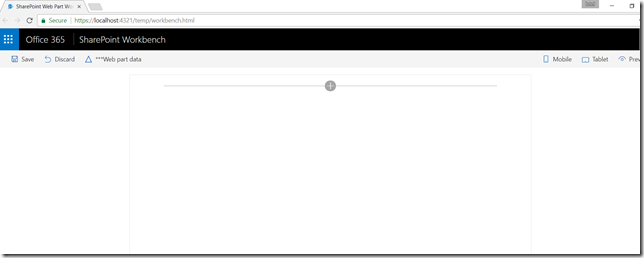
Run the project by clicking “Start” and your first Workbench project will be opened in the browser.

image

By clicking on + You can add SPFx webpart. 

Monday, April 17, 2017

“List 'User Information List' does not exist at site with URL” exception for users with member permission

Introduction

I was using SharePoint rest api in order to retrieve all the departments through user information list.

Problem

I was using

_spPageContextInfo.webAbsoluteUrl + "/_api/web/lists/getbytitle('User Information List')/Items?$select=Department";

for the rest query. When I logged in as a site collection administrator, I got expected results.

But when I logged in as a site member I got the below exception.

List 'User Information List' does not exist at site with URL '<site url>'. 

List 'User Information List' does not exist at site with URL

Solution

Instead of using the above I used the below url and I got the expected results for users with the member permission as well.

_spPageContextInfo.webAbsoluteUrl + "_api/web/SiteUserInfoList/items?select=Department"

Wednesday, April 12, 2017

Convert SharePoint Online based SharePoint Hosted Add-in to SharePoint 2013 On premises based one

Introduction

We used SharePoint Online based template in Visual Studio 2015 in order to develop SharePoint hosted add-in.

Problem

Our client’s requirement is to deploy it in the SharePoint 2013 On premise. So we had to convert the solution.

Solution

Step 01:

  • Right click on AppManifest.xml and click on View Code.
  • Then change the SharePointMinVersion to 15.0.0.0

image

Step 02:

  • Double click on on Package.package under Package folder.
  • There you will find SharePoint Product Version. Change it to 15.0.

image


Conclusion

Now you can publish the solution and deploy to SharePoint 2013 On premise.


Thursday, March 16, 2017

Add Web Application property bag using Power Shell and use them in SharePoint timer job

Introduction

SharePoint Web Application level property bag is used to store configuration setting data and information. I make use of the property bag when I write a timer job.

I store value in property bag as key, value using power shell and using C# server object model I retrieve and make use of it.

Set Web Application Level Property Bag

You can create a function in Power shell

 function SetWebApplicationPropertyBag ($webAppUrl, $key, $value) {

	$Web = Get-SPWebApplication -Identity $webAppUrl
	$Web.Properties.Add($key,$value) #add property bag
	$Web.Update()

	Write-host "Created new Property:" $Web.Properties[$key]
 
 }

And you can call the function like this.

$webAppUrl ="Web Application url goes here"
$PropertyName1 ="Key"
$PropertyValue1 ="Value"

SetWebApplicationPropertyBag $webAppUrl $PropertyName1 $PropertyValue1

You have to change the values of $webAppUrl, $PropertyName1 and #PropertyValue1.

Copy paste code in SharePoint Management shell and your web application property will be created.

Retrieve property bag value in SharePoint Timer Job

Since SharePoint Timer Jobs are created with the feature, in Web Application level scope, we can use the below code to retrieve the data.

var value = WebApplication.Properties["Key"].ToString();

You can make use of value and do operations.

Remove Property Bag

You can use below code to remove a value from property bag.

$Web = Get-SPWebApplication -Identity "Web Application Url"

$Web.Properties.Remove("Key")

$Web.Update()

Thursday, March 9, 2017

Change the Language of SharePoint List Template

Problem Background

Recently I had to save a list as “List Template” from my client’s SharePoint Online site (which the language is configured to French) and upload to my SharePoint site (the language is English) and create a list using that particular List Template.

However, the list template was not displayed when I try to create a new list by navigating to “Add an App”. This is because of the language is not the same.

Solution

So, what I did was to change the language of the list template.

Step 1

Download the List Template from SharePoint List Template Gallery. The extension of the list template file would be “.stp”.

Step 2

Change the extension from “.stp” to “.cab” as given blow.

image 

Step 3

Extract the file and you will be getting a “manifest.xml” file

image

Step 4

Open the .xml file a note page and change the language to your desired language number and save it.

image

You can get the language ID list from the below url.

https://technet.microsoft.com/en-us/library/ff463597.aspx

Step 5

Open PowerShell and navigate to the folder where your manifest.xml is located and run the below script.

  
 makecab manifest.xml [Name of the list template].stp

My one looks as below.

image

Hit Enter and your List Template will be created.

image

Conclusion

Now your list template is created with new Language. You can upload to List Template Gallery and you can start creating the list.

image

image

Wednesday, February 22, 2017

Link a column of a list other than the title to DispForm.aspx in SharePoint 2013

Problem

I had created a custom SharePoint list through Visual Studio 2013. I had added another column. I need this column to be linked to display form of the item. By default title field is linked to display form.

Solution

The solution is simple

  1. Open the Schema.xml of Listimage
  2. Search for your field under <Fields> tag.
  3. Add LinkToItem="TRUE" as a property.

image

Conclusion

Now you can click on your field and navigate to the display form.

Here is the visual studio solution:

https://drive.google.com/file/d/0ByEnOE8DAdvhdV80Y3ZCQzh0TkE/view?usp=sharing

Friday, February 10, 2017

Check whether a user exists in a SharePoint group using Rest Api?

Solution

The rest query url. This was tested in SharePoint Online

var isMember = false;

var userId = _spPageContextInfo.userId;// _spPageContextInfo.userId is current logged in user

var groupName = "Name of the group";

var url = _spPageContextInfo.webAbsoluteUrl + "/_api/web/sitegroups/getByName('"+ groupName +"')/Users?$filter=Id eq "+ userId ;
Once the results are received we have check the length of the results as below.

if(result.data.d.results.length >0){
                 isMember = true;
                 }
     

The full code is below. Please note that I have used deferred in Angular JS.

  function getIsCurrentUserInGroup()
    {
        var isMember = false;
 var deferred = $q.defer();
 var userId = _spPageContextInfo.userId;// _spPageContextInfo.userId is current logged in user
 var groupName = "Name of the group";
        var url = _spPageContextInfo.webAbsoluteUrl + "/_api/web/sitegroups/getByName('"+ groupName +"')/Users?$filter=Id eq "+ userId ;
        $http({
            url: url,
            method: "GET",
            contentType: "application/json;odata=verbose",
            headers: { "Accept": "application/json; odata=verbose" }
        }).then(function (result) {
            
           if(result.data.d.results.length >0)
 {
  isMember = true;
 }
            deferred.resolve(isMember );
        }, function (error) {
            deferred.reject('Request failed. ' + errorCode.get_message() + '\n' + errorCode.get_stackTrace());
        });

        return deferred.promise;
        
     }

Thursday, January 26, 2017

System.NullReferenceException: Object reference not set to an instance of an object when deploying SharePoint 2013 workflow solution

Problem

I was trying to deploy a workflow solution using Visual Studio 2013; when I tried I got an exception as “Error occurred in deployment step 'Activate Features': System.NullReferenceException: Object reference not set to an instance of an object.
   at Microsoft.SharePoint.WorkflowServices.WorkflowSubscriptionStorageEventReceiver.ItemUpdating(SPItemEventProperties properties)”.

Solution

We have to configure Workflow Manager on a server that is part of the SharePoint 2013 farm and on which communication takes place by using HTTP.

  Register-SPWorkflowService -SPSite "http://sharepoint-sp:29375/" -WorkflowHostUri "http://localhost:12291/" -AllowOAuthHttp

Reference

https://technet.microsoft.com/en-us/library/JJ658588.aspx

How to create a SharePoint webpart with custom webpart property/properties

Introduction

Recently one of colleague want to create a webpart for SharePoint using C# as programming language. One of his requirements is to that “user wants to pass values through custom webpart property.” So I created a sample for him.

Solution

Here is the code and also you can download the .sln file from my drive by clicking below URL.
https://drive.google.com/file/d/0ByEnOE8DAdvhLTFtd1oxWS1GNUU/edit?usp=sharing

     
namespace CustomProperty.CustomWebPartProperty
{
    [ToolboxItemAttribute(false)]
    public class CustomWebPartProperty : WebPart
    {
        private string _name = "Suhail";//The default value to display
        [WebBrowsable(true),
        WebDisplayName("Label Text"),//WebPart property display name
        WebDescription("Label Text to appear in Label"),//Property discription
        Category("Custom"),//Custom webpart property catogory
        Personalizable(PersonalizationScope.Shared)]
        public string Name
        {
            get
            {
                return _name;
            }
            set
            {
                _name = value;
            }

        }
        protected override void CreateChildControls()
        {
            Label name = new Label();
            name.Text = Name;
            this.Controls.Add(name);

        }
    }
}


Conclusion

You can see your custom webpart property at the end of the webpart setting.

When you need values which should be able customize don’t save in web.config file; You may use custom webpart properties.

Tuesday, January 24, 2017

“The attribute 'autoeventwireup' is not allowed in this page” issue in SharePoint 2013

Problem

Recently we deployed two wsp solutions in an environment. One wsp consists of master page and the other one consists of a site page with code behind where I use events like onclick and all.

After the deployment when I try to access the aspx page we got the above error.

Solutions

Solution 1.

Remove the code behind file and create a web part and add the web part in the page.You can see my blog post on how to create site page without code behind.

Solution 2.

Go to Site Settings page, under the Site Action section, click Reset to site definition.

01

Then give your page url and click Reset.

Capture

Check your page.

If its still the same give your master page url (which ends with .master) and repeat the above step.

Now your page should work fine.

Tuesday, January 17, 2017

How to disable client side people picker using JQuery in SharePoint 2013 | SharePoint Online

Problem

I had created SharePoint people picker using the example from msdn in my aspx page. I had to disable people picker through JQuery in order to full fill my client’s requirement.

Solution

According to above mentioned msdn post people picker is initiated on.

  <div id="peoplePickerDiv"></div>

So the id of the div is peoplePickerDiv. So with that I will show the solution.

Step 1:

Create an object of people picker.

  var peoplePicker = this.SPClientPeoplePicker.SPClientPeoplePickerDict.peoplePickerDiv_TopSpan;

Step 02:

Set Enable state to fasle.

peoplePicker.SetEnabledState(false);

This will disable the people picker. But you can remove the people objects with X sign. So in Step three we have to remove X.

Step 03:

Remove the X image.

$('#peoplePickerDiv_TopSpan_ResolvedList').find('.sp-peoplepicker-delImage').hide();

Conclusion

Now the people picker is disabled.

image


Tuesday, November 1, 2016

Usage of HTML field security in SharePoint Online and SharePoint 2013

Introduction

HTML field security in SharePoint (Office 365 and SharePoint 2013) controls inserting iframes on the pages of the particular site.

You can go to HTML Field Security by going to Setting Page and under “Site Collection Administration” you can find “HTML Field Security” option.

1

You can edit the page and select “Edit Source” from the ribbon in order to add iframe into a page.
3
Options

There are three options
2

Option 1. Do not permit contributors to insert iframes from external domains into pages on this site.

This blocks the contributors from adding iframes from external domains. When the users try to add an iframe through edit form they will get a notification saying “Warning: Some of your markup was stripped out. Try using the Embed command.”
4
Option 2. Permit contributors to insert iframes from any external domain into pages on this site.
This option will lead the contributors to add iframes from any domain.
Option 3. Permit contributors to insert iframes from the following list of external domains into pages on this site: Allow iframes from this domain:
The contributors can add iframes from the domain given in the area. And also the subdomains of the given domain are trusted.

So this is how we use the HTML field security in SharePoint. But again let’s discuss some scenarios on HTML field security.

Scenario 01.

In the setting, Option 1 is selected and can I add an iframe to the page?

Yes you can. Add the iframe through “Script Editor” web part. Edit the page, go to insert and click “Embed Code”.
4
Scenario 02.

What will happen to the exiting iframes if the Option is set to 3?
Nothing will happen to the exiting iframes. It will continue to work.

Scenario 03.

What will happen to sub sites?

The setting in the site collection level will be applied to sub sites as well.

Friday, September 9, 2016

"Your domain doesn't match the expected domain for this app deployment." issue in provider hosted add-in

Problem

One of my friend had an issue after deploying his provider hosted add-in in SharePoint on premise environment. He was not able to access list data from the add-in web of the Add-in. I looked at the code and the error was something as below.

provider

Solution

Step 01

Get the add-in id by navigating to

http://<SharePointWebsite>/_layouts/15/AppPrincipals.aspx

App identifier was something like the below and the text which was bolded will be the add-in id.

i:0i.t|ms.sp.ext|21ed123y-b1u9-4d54-9cb1-ee36b5f91304@9d2c9af1-aa54-42rf-ab8d-37d639b3f6ed

Step 02

Get the App Domain by going to below url and giving the add-in id which we got from the above.

http://<SharePointWebsite>/_layouts/15/AppInv.aspx

Step 03

My observation was that the App Domain which was given during registering the add-in was different from the url where the add-in has been hosted.

So, I registered the add-in again in the SharePoint site with the correct IIS host header and redeployed the add-in; which lead to work perfectly.

References

https://msdn.microsoft.com/en-us/library/office/jj687469.aspx

Thursday, December 24, 2015

SP.Core.js file was not initialized during page post back in SharePoint 2013

Problem

Today we had an issue where the sp.core.js file was not initialized after the post back of a application page. So the other SharePoint JavaScript files like sp.js, sp.runtime.js threw errors (As in the screenshot below). So, the functionalities didn’t work as expected.

Capture

Environment

The sp.core.js file was referenced in the master page and our custom JavaScript file (the file where our functionalities are implemented. We were opening a modal pop up implementing some logics) was referenced in the aspx page. Our client wanted us to work only in the custom JavaScript file and not in the master page or in application page.

Solution 

We used registerSod function which is available in SharePoint Script On Demand (SP.SOD) framework in order to load build in SharePoint JavaScript libraries.
 
  1. /* SP.SOD.registerSod(key value (any unique string), path of the script file); --- */
  2. SP.SOD.registerSod('sp.core.js', '\\_layouts\\sp.core.js');
  3. /*  executeFunc is used to execute the file mentioned above. using dummy function --- */
  4. SP.SOD.executeFunc('sp.core.js', false, function () { });
  5. SP.SOD.registerSod('sp.js', '\\_layouts\\sp.js');
  6. SP.SOD.executeFunc('sp.js', false, function () { });
  7. SP.SOD.registerSod('sp.ui.dialog.js', '\\_layouts\\sp.ui.dialog.js');
  8. SP.SOD.executeFunc('sp.ui.dialog.js', false, function () { });

Reference

http://www.vlieshout.net/sharepoint-2013-lazy-loading-javascript/


Tuesday, July 7, 2015

Failed to create the configuration database. System.ServiceProcess.TimeoutException was thrown in SharePoint 2013

Problem

I was installing SharePoint 2013 SP 01 in a client’s machine and I got System.ServiceProcess.TimeoutException exception thrown when the configuration wizard trying to creating the configuration database. The screenshot attached below.

21

When I noticed in services the “SharePoint Tracing Service (SPTraceV4)” being stuck on stopping state.

Solution

Step 01. Right click on services and open the properties
Step 02. Changed the Recovery as shown below. 

689550
Step 03. Kill the wsstracing.exe (This is the name of the windows service for SharePoint tracing service) using task manager.

Conclusion

When I killed the process the process started automatically and as the same other process also started as needed.
The installation was a success.
Please check the below link for the conversation regarding tis post which took place in msdn.
https://social.technet.microsoft.com/Forums/office/en-US/fe3572a1-af49-493b-af5b-f1de0ab5ea4c/sharepoint-tracing-service-sptracev4-stuck-on-stopping-when-installing-sharepoint-2013?forum=sharepointadmin#04678991-a3fd-45d6-8102-16eedf5d7c37

Tuesday, June 9, 2015

How to get SharePoint User by User Id in JavaScript using JSOM

Solution

  1. function getUserById() {
  2.  
  3.     var context = new SP.ClientContext.get_current();
  4.     var user = context.get_web().get_siteUsers().getById('1073741823');//Give the user id here
  5.     context.load(user);
  6.     context.executeQueryAsync(
  7.          Function.createDelegate(null, ensureUserSuccess),
  8.          Function.createDelegate(null, onFail)
  9.     );
  10.  
  11.     function ensureUserSuccess() {
  12.         //You can access the properties here
  13.         alert(user.get_title());
  14.         alert(user.get_loginName());
  15.     }
  16.  
  17.     function onFail() {
  18.         alert('Fail');
  19.     }
  20. }

Tuesday, April 7, 2015

Retrieve form urls in JSLink (NewForm.aspx | DispForm.aspx | EditForm.aspx) in SharePoint Online and in SharePoint 2013


Problem

I had a requirement to add a link tag where the url redirects to Display form of a item. I was rendering the view using JSLink.

Read my previous posts on JSLink on http://jsuhail.blogspot.com/search/label/JSLink

Solution

Display Form Url

var url = String.format('{0}&ID={1}', ctx.displayFormUrl, ctx.CurrentItem.ID);

Edit Form Url

  1. var url = String.format('{0}&ID={1}', ctx.editFormUrl, ctx.CurrentItem.ID);

New Form Url

ctx.newFormUrl