Pages

Showing posts with label WebPart. Show all posts

Monday, October 30, 2017

Add web part in html file of custom page layout in SharePoint Online

Introduction

I followed this post to create custom page layout.

Problem Background

I wanted to add web parts to that custom page layout, so that if a user create any page selecting the specified custom layout those web parts will appear by default.

Solution

The solution I did was, to add HTML snippets in the page layout through SharePoint Designer 2013.

Steps

1. Go to Design Manager

Site Setting –> Design Manager

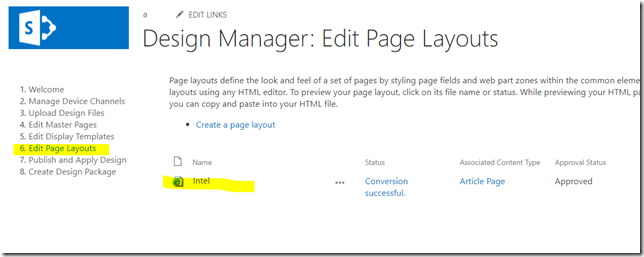
2. Go to Edit Page Layouts and Click on the custom page layout you created (In my case it’s “Intel”)
image

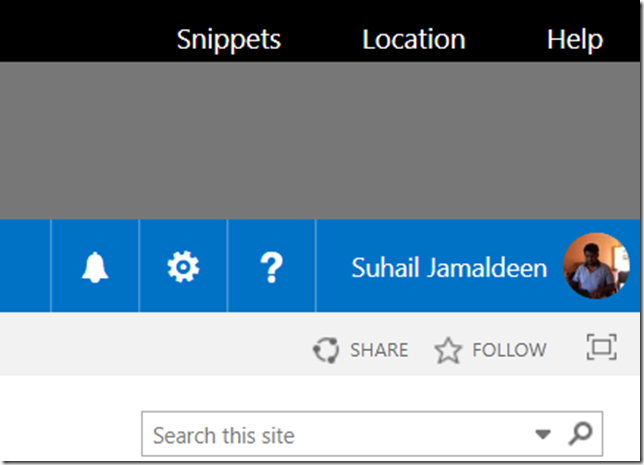
3. Then click on the “Snippets” at the top. Once you click, a page will open in a new tab.
image

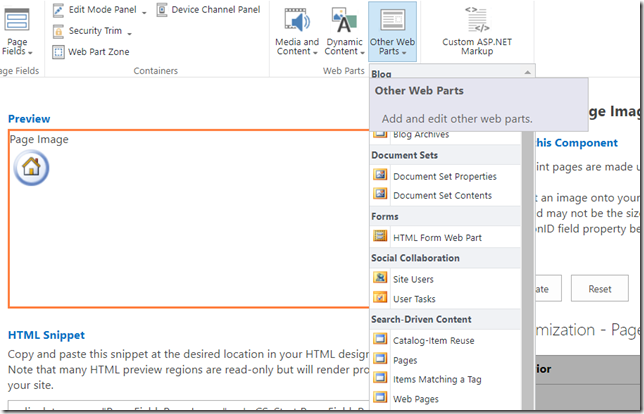
4. Select the web part you want to add.
image


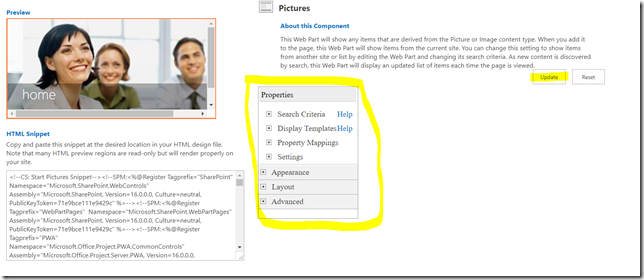
5. Depending on the web part you selected, you will be allowed to select and set the properties. Change  the properties and click on update.
image

6. Once you click on “Update” button the HTML snippet for the web part will be rendered under HTML Snippet section. 

7. Copy that HTML snippet.

8. Open the SharePoint designer and Edit the page layout. Paste the copied HTML inside the div of PlaceHolderMain or any other location as your wish.

9. Close it and publish the page layout as the major version.

Conclusion

Now your web part is added to the page layout.

Thursday, December 18, 2014

Add webpart to page through module (Elements.xml) in SharePoint

Introduction

There are several ways to add pages into SharePoint page. To day i will illustrate how to add a webpart to SharePoint page through modules using Elements. xml file.

Solution

Step 1: Add a page into Visual Studio SharePoint solution. You can use this post how to do it.

You need a webpart zone to add a webpart, and according to my post the webpart zone ID is WebPartZoneSearch

Step 2: Then create a webpart as your wish.

Then the solution will be looking something like this.

image

Step 03: Open the Elements.xml file which is inside Module1 and you have to modify it something like this.

  1. <?xml version="1.0" encoding="utf-8"?>
  2. <Elements xmlns="http://schemas.microsoft.com/sharepoint/">
  3.   <Module Name="Module1">
  4.     <File Path="Module1\ApplicationPage1.aspx" Url="Module1/ApplicationPage1.aspx" >
  5.       <AllUsersWebPart WebPartOrder ="0" WebPartZoneID ="WebPartZoneSearch">
  6.         <![CDATA[
  7.           <webParts>
  8.             <webPart xmlns="http://schemas.microsoft.com/WebPart/v3">
  9.               <metaData>
  10.                 <type name="SitePages.WebPart1.WebPart1, $SharePoint.Project.AssemblyFullName$" />
  11.                 <importErrorMessage>Cannot import this Web Part.</importErrorMessage>
  12.               </metaData>
  13.               <data>
  14.                 <properties>
  15.                   <property name="Title" type="string">WebPart Title</property>
  16.                   <property name="Description" type="string">WebPart Title</property>
  17.                                       </properties>
  18.               </data>
  19.             </webPart>
  20.           </webParts>
  21.         ]]>
  22.       </AllUsersWebPart>
  23.     </File>
  24.   </Module>
  25. </Elements>

Changes for your code:

Line No 05: You have to add the WebPartZoneID which is from aspx page.

Line No 10: Full Assembly name of your webpart.

Please change both according to your solution.

Conclusion

You can add other property like chrome type through Elements.xml file as well.

Please find the solution here, which may helpful to you. 

https://drive.google.com/file/d/0ByEnOE8DAdvheEJaY1RUSkdEM28/view?usp=sharing