Introduction
I was assigned to a project where I need to come up with workflow as a part of the module. For the first time I’m developing SharePoint workflows and I may get a chance to share some of the knowledge I will be gaining in upcoming days.
Problem Background
I had to assign a workflow task to a user and the task out come should be “Submit” and “Reject”. The default is usually “Approved” and “Rejected” as shown in the below screenshot.
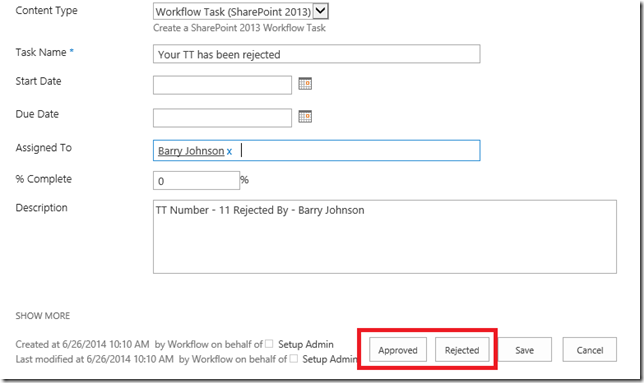
The requirement is something like this.

Solution
- You have to create a custom content type
- Go to Site Settings –> Site content types –> Click Create
- Fill Name and Description field
- Select “List Content Types” under “Select parent content type from:”
- Select “Workflow Task (SharePoint 2013)” "under “Parent Content Type:”
- See the screen shot.

- Click OK
- Once the page is redirected to the content type page ensure that the parent of the content type is Workflow Task (SharePoint 2013)

- Add new site columns with the options we need for new task out come.
- On the Site Content Type Page under Columns click “Add from new site column”
- Give the Column Name as your wish
- The type of information in this column is: should be “Task Outcome”
- and you have to give the choices in “Type each choice on a separate line:” text area. I have given Submit and Reject.

- Remove the default task out come from the created content type
- Click on Task Outcome under Columns section and click Remove.
- Lets assign set the outcome option with the above create content type
- Create a List workflow through SharePoint designer 2013
- From the action menu add Assign a task action
- Click this user and set the Participant and task title
- Click Outcome options and select the content type created here the name of the content type is “Name” as we created above.
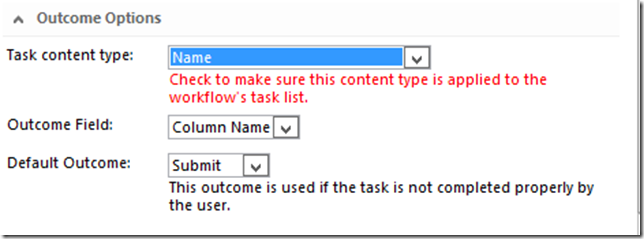
- Now we can get the output values from the workflow in the designer.

- When we select the custom content type we will get an alert in read saying “Check to make sure this content type is applied to the workflow’s task list”
- When we assign a task the task is created in a separate list. The default is Workflow task list. We can create as we want.
- We can see the task list in workflow settings page

- We have set the above created content type to the workflow task list.
- Go to Workflow task list (Or your custom task list) through site content page
- Then List Setting –> Under Content Types click “Add from existing site content types”
- Add the content type we created.

That's all.
Conclusion
Now once we assign a task the task will have the above created outcome options in the tasks item. Don't miss the point associating the content type with the task list; else you will get a exception.


