
Tuesday, April 16, 2019

Sunday, December 2, 2018
Office 365 Developer Bootcamp – Microsoft Sri Lanka (01.12.2018)
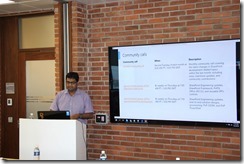
It was pleasure speaking at Office 365 Developer Bootcamp at Microsoft Sri Lanka which held on 1st of December 2018.
Topic: Be a Modern SharePoint Developer
You can find the slide and some of the images from the event.




Entire Facebook Album: https://www.facebook.com/pg/Suhail.Cloud/photos/?tab=album&album_id=836617343364798
Wednesday, February 21, 2018
Create SharePoint Online Lists and Fields using PnP PowerShell
Introduction
In this blog post we will be looking how to create Lists and Fields using PnP PowerShell. You can download and install PnP PowerShell here.
Solution
First you have to connect to SharePoint Online using PnP PowerShell.
Connect-PnPOnline –Url “site collection name” –Credentials (Get-Credential)Creating List
Generic List
$ListName = "Cohort"
$ListUrl = "Lists/Cohort"
New-PnPList -Title "ListName" -Url "ListUrl" -Template GenericList
Fields
Number
$NumberFieldString =''
Add-PnPFieldFromXml -List ListName -FieldXml $NumberFieldString
Text
$TextFieldString =''
Add-PnPFieldFromXml -List ListName -FieldXml $TextFieldString
Date
$DateFieldString = ''
Add-PnPFieldFromXml -List $ListName -FieldXml $EndDateFieldString
Multi Lines
$MultiLines ='Yes/No' Add-PnPFieldFromXml -List $InstructorCohortListName -FieldXml $MultiLines
$Boolean ='Lookup' Add-PnPFieldFromXml -List $InstructorCohortListName -FieldXml $Boolean
#Please not that you have to give the Look up list guid for List Field
$Lookup =''
Add-PnPFieldFromXml -List $CohortListName -FieldXml $Lookup
Sunday, November 12, 2017
Video - Export and Import Web Parts in SharePoint Online - Tamil
This video shows how we can export a web part then import into SharePoint Online Web Part Gallery and add to a SharePoint Online page.
This is a part my session in Tamil for my YouTube channel.
I would greatly appreciate it if you kindly give me some feedback and your feedback will definitely help me a lot in future.
Thursday, November 9, 2017
Training – Introduction to SharePoint Online for Collaboration and Document Management
Conducted a full day training through Skype for Business on “Introduction to SharePoint Online for Collaboration and Document Management” for a organization. They have offices located in Canada and Portugal. They have implemented their intranet using Office 365 and they are going to use SharePoint Online for the document management.
The course was based on 55029BC, but customized and focused only for SharePoint Online.
Amazing audience, very friendly and interactive. Thanks everyone.
Monday, November 6, 2017
List all “Docs I'm following” in Office 365 | SharePoint Online | OneDrive for Business
We can follow documents in a SharePoint online. So that all the documents we follow will be referenced in OneDrive for business; which leads to easy access.
Problem
Till today, there no navigation option available to see all the following document in Modern Experience.

Solution
To over come it you have to switch to Classic OneDrive (See the above image and click on the text highlighted in yellow).
Now you can see a new navigation option added on the left as ‘Followed”.
Click it and you can see the documents you are following.

Sunday, October 29, 2017
IDM Knowledge Share – Team Collaboration in Office 365
I will be conducting a workshop on “Team Collaboration in Office 365”, as a part of IDM Knowledge Share.
Date: 29th of October 2017
Time: 10 am to 12 noon
Venue: IDM Nations Campus, Kotahena
Event Post Url: https://www.facebook.com/idmnc/posts/1586187304737107

Updated On: 29th of October 2017
Slide deck used for the event







Thursday, October 12, 2017
Prevent users from creating Site Pages – SharePoint admin center in Office365
Introduction
Usually users who have permission level greater than Contribute (Contribute, Edit, Design, Full Control) level will be able to create Site Pages in a SharePoint site.
Creating site pages feature can be disabled from SharePoint admin center, so that any user will not have the option to create site pages.
Steps
- Go to SharePoint admin center in Office 365
- Go to settings
- Under section “Site Pages”
- Select ”Prevent users from creating Site Pages”
- Click OK at the bottom
- Now your users including the site collection administrators will not see create Site Pages option from the “New” dropdown action.


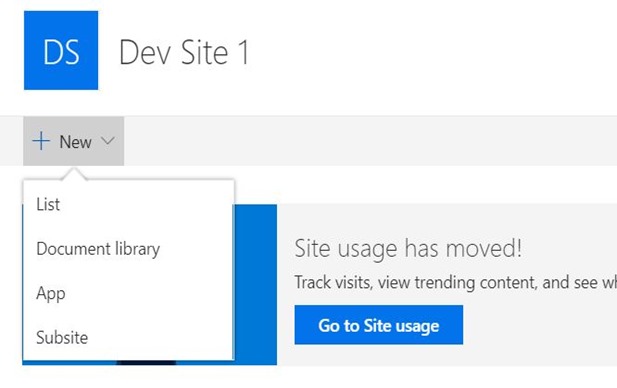
- It prevent users from only creating Site Pages (which are modern site pages), the users can create Wiki Pages and Web Part Pages

Friday, August 25, 2017
Add an Attachment to a list item with PnP JS Core library and Dropzone.js
Introduction
I was using ng-dropzone which is a AngularJS directive for dropzone.js and PnP JavaScript Core Library in order to add an attachment for list item.
I was following this url in order setup dropzone.js in my SharePoint hosted add-in.
In order to add an attachment to SharePoint list item please do the below changes.
- Replace $scope.dzCallbacks as below
- Add below function to insert item and add attachment
      $scope.dzCallbacks = {
            'addedfile': function (file) {
                console.log(file);
                $scope.dropZoneFiles.push(file);
            },
            'success': function (file, xhr) {
                console.log(file, xhr);
            },
        };
Since my solution is a SharePoint hosted add-in I’m using crossDomain call and you have to replace your addinWeb and hostWeb url and also your have to change the list name. My list name is “abc”
     $scope.saveItem = function () {

            $pnp.sp.crossDomainWeb(addinWeb, hostWeb).lists.getByTitle("abc").items.add({
                Title: "Title",

            }).then((result) => {

                $scope.dropZoneFiles.forEach(function (file) {
                    var toUpload = file;

                    var r = new FileReader();

                    r.onloadend = function (e) {
                        var data = e.target.result;


                        item.attachmentFiles.add(toUpload.name, data).then(function () {
                            alert()
                        });
                    }

                    r.readAsArrayBuffer(toUpload);

                    console.log(result);
                });
            }
Conclusion
The item will be created and the attachment will be uploaded.
Thursday, March 9, 2017
Change the Language of SharePoint List Template
Problem Background
Recently I had to save a list as “List Template” from my client’s SharePoint Online site (which the language is configured to French) and upload to my SharePoint site (the language is English) and create a list using that particular List Template.
However, the list template was not displayed when I try to create a new list by navigating to “Add an App”. This is because of the language is not the same.
Solution
So, what I did was to change the language of the list template.
Step 1
Download the List Template from SharePoint List Template Gallery. The extension of the list template file would be “.stp”.
Step 2
Change the extension from “.stp” to “.cab” as given blow.

Step 3
Extract the file and you will be getting a “manifest.xml” file

Step 4
Open the .xml file a note page and change the language to your desired language number and save it.

You can get the language ID list from the below url.
https://technet.microsoft.com/en-us/library/ff463597.aspx
Step 5
Open PowerShell and navigate to the folder where your manifest.xml is located and run the below script.
makecab manifest.xml [Name of the list template].stp
My one looks as below.

Hit Enter and your List Template will be created.

Conclusion
Now your list template is created with new Language. You can upload to List Template Gallery and you can start creating the list.


Thanks for the opportunity and great working with you guys