Pages

Friday, July 11, 2014

Change user account (managed account) for Web Application | Service Application Pool | Windows Service


Problem Background

Administrators may need to change the user account which already we set to a service application pool.

Solution

  • Open Central Administration
  • Click Security tab
  • Under General Security click Configure service accounts
  • There you can set the managed account for existing service app pool or web application

image

Thursday, July 10, 2014

Map Managed Metadata Term Set to User Profile Properties in SharePoint 2013

Introduction

My team is working on a corporate internal portal which contains my site and social and project portals. So we had created User Profile Service Application and Managed Meta Data Service Application.

Problem Background

Our clients requirement is to map a term set to user profile property so that users can only add terms from a particular term set to a property. For an example we have a term set called “Skills” and users should be able to add terms from the “Skills” term set to Skills user profile properties.

Solution

Configuration On Managed Metadata Service

  • Open the Central Administration.
  • Click Application Management –> Manage Service Application
  • Select Managed Metadata Service application proxy
  • Click on Properties from top ribbon
  • From the option select the check box for “This service application is the default storage location for column specific term sets”.
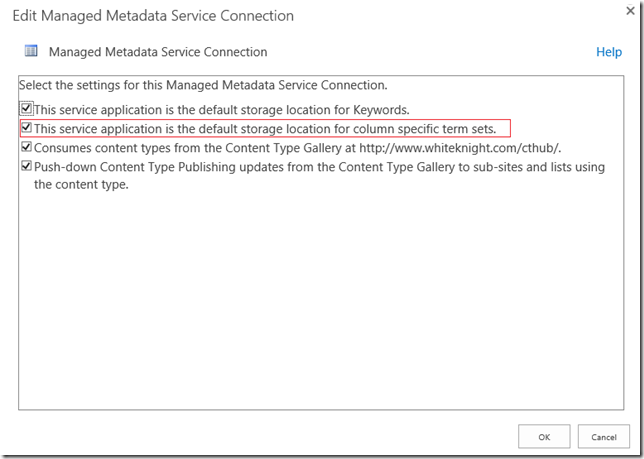
image

  • Then Click OK Button.

Configuration On User Profile Service Application 

  • Click and open on User Profile Service Application
  • Click on User Profile Properties.
  • From there click on your target property; in my case its Skills.
  • From the drop down click on the Edit Option
  • From there; under Property Settings – select a term set from the drop down under “Pick a Term Set for this property:”

image

Conclusion

Now when you go and try to edit skills property in user profile all the terms which are only in the particular term set are visible.

image

And also if the users add new terms which are not available; they will be automatically added to the particular terms set.

If you want users not to add new terms through user profile property in my site make the terms set closed through the below steps.

  • Open the Taxonomy Terms Store by clicking on Managed Meta Data Service
  • Select the Terms Set and make it closed in submission policy

image

Once you select closed users cannot add new terms.

Friday, June 27, 2014

Remove the Content Type drop down in SharePoint 2013 Workflow Task list

Introduction

So, Here is my second post on SharePoint 2013 workflow.

Problem Background

After creating a workflow task through custom content type, there is a dropdown showing the content types which were inherited from workflow tasks content type as in the screenshot below. I need to hide the drop down.

image

Solution 01

  1. Open the the Workflow Task list in browser
  2. Go to list settings and click on Advanced Settings
  3. There under “Content Types”, you have “Allow management of content types?” as radio buttons
  4. Select “No” option.

image

Solution 02

  1. Open the the Workflow Task list through SharePoint Designer 2013.
  2. Under setting panel there is a check box for “Allow management of content types”. Un tick that check box and save.

image

Conclusion

Now the user cannot see the dropdown for selecting content type.

image

Thursday, June 26, 2014

Create custom outcome options in workflow tasks for SharePoint 2013 workflow

Introduction

I was assigned to a project where I need to come up with workflow as a part of the module. For the first time I’m developing SharePoint workflows and I may get a chance to share some of the knowledge I will be gaining in upcoming days.

Problem Background

I had to assign a workflow task to a user and the task out come should be “Submit” and “Reject”. The default is usually “Approved” and “Rejected” as shown in the below screenshot.

image

The requirement is something like this.

image

Solution

  • You have to create a custom content type
    • Go to Site Settings –> Site content types –> Click Create
        • Fill Name and Description field
        • Select “List Content Types” under “Select parent content type from:”
        • Select “Workflow Task (SharePoint 2013)” "under “Parent Content Type:”
        • See the screen shot.

      image

        • Click OK
        • Once the page is redirected to the content type page ensure that the parent of the content type is Workflow Task (SharePoint 2013)

image

  • Add new site columns with the options we need for new task out come.
    • On the Site Content Type Page under Columns click “Add from new site column”
    • Give the Column Name as your wish
    • The type of information in this column is: should be “Task Outcome”
    • and you have to give the choices in “Type each choice on a separate line:” text area. I have given Submit and Reject.

    image

  • Remove the default task out come from the created content type
    • Click on Task Outcome under Columns section and click Remove.
  • Lets assign set the outcome option with the above create content type
    • Create a List workflow through SharePoint designer 2013
    • From the action menu add Assign a task action
    • Click this user and set the Participant and task title
    • Click Outcome options and select the content type created here the name of the content type is “Name” as we created above.

    image

  • Now we can get the output values from the workflow in the designer.

image

  • When we select the custom content type we will get an alert in read saying “Check to make sure this content type is applied to the workflow’s task list”
    • When we assign a task the task is created in a separate list. The default is Workflow task list. We can create as we want.
    • We can see the task list in workflow settings page

image

  • We have set the above created content type to the workflow task list.
    • Go to Workflow task list (Or your custom task list) through site content page
    • Then List Setting –> Under Content Types click “Add from existing site content types”
    • Add the content type we created.

image

    • Click OK.

That's all.

Conclusion

Now once we assign a task the task will have the above created outcome options in the tasks item. Don't miss the point associating the content type with the task list; else you will get a exception.

Monday, June 16, 2014

Work Item Timer Jobs - Presentation

Sri Lanka SharePoint Forum June 2014 offline meeting happened on June 11th. My tech lead Dinusha Kumarasiri did the first session on “How to use Provisioning Providers” and I did the second session on “Work Item Timer Jobs in SharePoint”.
This is my first ever session on SharePoint forum and also the first session on a public forum. I would like to thank Prabath Fonseka and Wellinton Perera for providing me with this opportunity, and also would like to extend my thank all the participants.
10393838_10152318026097530_3673986027299882108_n


Source Code

https://drive.google.com/file/d/0ByEnOE8DAdvhbkphQlpacWlySkU/edit?usp=sharing


Photos


Thursday, June 5, 2014

Add, Update and Delete SPListItem in SPList using JavaScript Object Model

Introduction

One person commented that - he needs to know How to Add, Update and Delete SPListItem in a SPList using JavaScript Object Model in a previous blog post. So I thought of writing a post for him; and which may useful for other new SharePoint newbies too.

Solution

Add

  1. function Add() {
  2.     var clientContext = new SP.ClientContext();
  3.     var oWeb = clientContext.get_web();
  4.     var oList = oWeb.get_lists().getByTitle('List1');//Get SPList by Title
  5.     var itemCreateInfo = new SP.ListItemCreationInformation();
  6.  
  7.     var oListItem = oList.addItem(itemCreateInfo);
  8.     oListItem.set_item('Title', 'Value'); //Title is the field and Value is the value for field
  9.     oListItem.update();
  10.  
  11.     clientContext.load(oListItem);
  12.     clientContext.executeQueryAsync(Function.createDelegate(this, onQuerySucceeded), Function.createDelegate(this, onQueryFailed));
  13.  
  14.     //Function when the execution of the query successed
  15.     function onQuerySucceeded(sender, args) {
  16.         alert('Data ADDED successfully');
  17.     };
  18.     //Function to run when the execution falis
  19.     function onQueryFailed(sender, args) {
  20.         alert('Cannot ADD');
  21.     };
  22.  
  23. };

Update

  1. function Update() {
  2.     var clientContext = new SP.ClientContext();
  3.     var oWeb = clientContext.get_web();
  4.     var oList = oWeb.get_lists().getByTitle('List1');//Get SPList by Title
  5.  
  6.     var oListItem = oList.getItemById(1);//Get the list item by id
  7.     oListItem.set_item('Title', 'New Value');
  8.     oListItem.update();
  9.     clientContext.executeQueryAsync(Function.createDelegate(this, onQuerySucceeded), Function.createDelegate(this, onQueryFailed));
  10.  
  11.     //Function when the execution of the query successed
  12.     function onQuerySucceeded(sender, args) {
  13.         alert('Data UPDATED successfully');
  14.     };
  15.     //Function to run when the execution falis
  16.     function onQueryFailed(sender, args) {
  17.         alert('Cannot UPDATE');
  18.     };
  19. };

Delete

  1. function Delete() {
  2.     var clientContext = new SP.ClientContext();
  3.     var oWeb = clientContext.get_web();
  4.     var oList = oWeb.get_lists().getByTitle('List1');//Get SPList by Title
  5.  
  6.     var oListItem = oList.getItemById(1);//Get the list item by id
  7.    oListItem.deleteObject();
  8.     clientContext.executeQueryAsync(Function.createDelegate(this, onQuerySucceeded), Function.createDelegate(this, onQueryFailed));
  9.  
  10.     //Function when the execution of the query successed
  11.     function onQuerySucceeded(sender, args) {
  12.         alert('Data DELETED successfully');
  13.     };
  14.     //Function to run when the execution falis
  15.     function onQueryFailed(sender, args) {
  16.         alert('Cannot DELETE');
  17.     };
  18. };

You can download the entire solution from the below url. https://drive.google.com/file/d/0ByEnOE8DAdvhSWFfM0Jja1FHMms/edit?usp=sharing

Friday, May 30, 2014

Get SPList items (by CAML query) using JavaScript in SharePoint Apps

Introduction

Today I will show how to get SPList Items by filtering using CAML query. Also this post includes how to get the data from a custom field.

Solution Background

I use JQuery.Deferred and Promise in order to achieve the success and failure of the asynchronous call. There are plenty of articles on the internet regarding JQuery.Deferred. Please see the Reference section for more on this.

Solution

  1.   function query() {
  2.  
  3.             var camlQuery =
  4.                 "<Where>" +
  5.                 "<Neq>" +
  6.                 "<FieldRef Name='CustomFieldOne' />" +
  7.                 "<Value Type='Text'>Suhail Jamaldeen</Value>" +
  8.                 "</Neq>" +
  9.                 "</Where>";
  10.  
  11.             //Calling the method getListItemsByCAMLAsync.
  12.             //Here the fail and done methods are from the deffered object which is returning.
  13.             getListItemsByCAMLAsync('NameOfList', camlQuery, 'Include(DisplayName, Id, CustomFieldOne)')
  14.                     .fail(function (e) {
  15.                         alert((handeler.parseSPException(e)));
  16.                     }).done(function (items) {
  17.                         var enu = items.getEnumerator();
  18.                         while (enu.moveNext()) {
  19.                             var cu = enu.get_current();
  20.                             var id = cu.get_id();//Read the Id
  21.                             alert(id);
  22.                             var prope = cu.get_fieldValues();//You can see the fields which you are retreiving
  23.                             var initiator = cu.get_fieldValues().CustomFieldOne;//Readvalue from custom property (Single line)
  24.                             alert(initiator);
  25.                         }
  26.                     });
  27.  
  28.         };
  29.  
  30.         //This returns a deferred object.
  31.         function getListItemsByCAMLAsync(listName, query, fieldsFilter) {
  32.             var def = $.Deferred();
  33.             var clientContext = new SP.ClientContext();
  34.             var oWeb = clientContext.get_web();
  35.             var ol = oWeb.get_lists().getByTitle(listName);
  36.             var qry = new SP.CamlQuery();
  37.             qry.set_viewXml(query);
  38.             var items = ol.getItems(qry);
  39.  
  40.             clientContext.load(items, fieldsFilter);
  41.             clientContext.executeQueryAsync(function () {
  42.                 def.resolve(items);
  43.             },
  44.                 function (a, b) {
  45.                     def.reject(b);
  46.                 });
  47.             return def.promise();
  48.         };

Reference

http://sharepoint.stackexchange.com/questions/69878/how-to-use-client-object-model-javascript-to-get-a-custom-user-profile-propert

http://api.jquery.com/category/deferred-object/

http://www.htmlgoodies.com/beyond/javascript/making-promises-with-jquery-deferred.html

Conclusion

Should say Melick (http://melick-rajee.blogspot.com) for the guide on SharePoint Apps.