Pages

Monday, October 30, 2017

Add web part in html file of custom page layout in SharePoint Online

Introduction

I followed this post to create custom page layout.

Problem Background

I wanted to add web parts to that custom page layout, so that if a user create any page selecting the specified custom layout those web parts will appear by default.

Solution

The solution I did was, to add HTML snippets in the page layout through SharePoint Designer 2013.

Steps

1. Go to Design Manager

Site Setting –> Design Manager

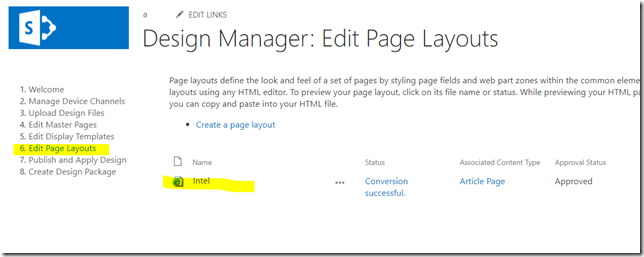
2. Go to Edit Page Layouts and Click on the custom page layout you created (In my case it’s “Intel”)
image

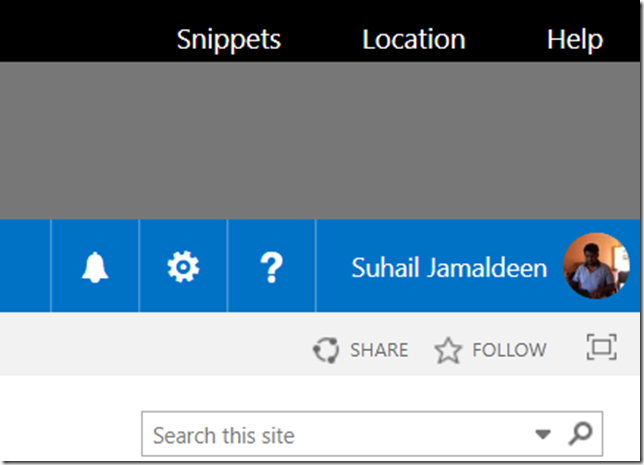
3. Then click on the “Snippets” at the top. Once you click, a page will open in a new tab.
image

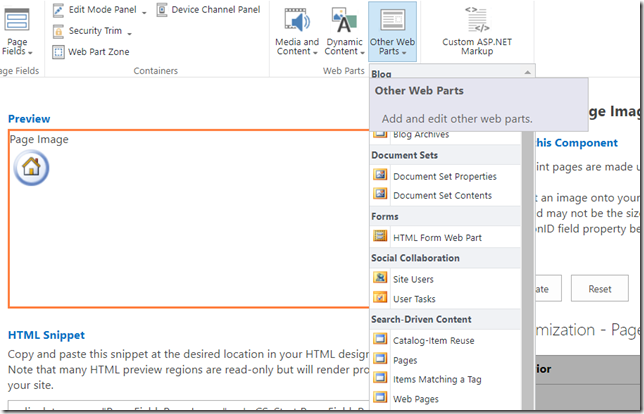
4. Select the web part you want to add.
image


5. Depending on the web part you selected, you will be allowed to select and set the properties. Change  the properties and click on update.
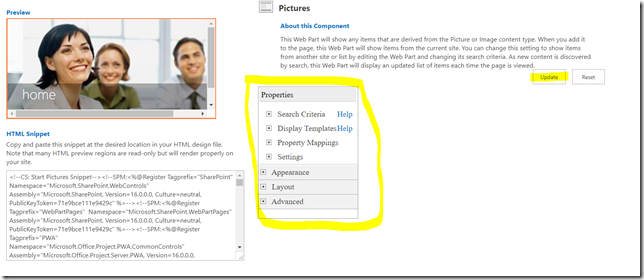
image

6. Once you click on “Update” button the HTML snippet for the web part will be rendered under HTML Snippet section. 

7. Copy that HTML snippet.

8. Open the SharePoint designer and Edit the page layout. Paste the copied HTML inside the div of PlaceHolderMain or any other location as your wish.

9. Close it and publish the page layout as the major version.

Conclusion

Now your web part is added to the page layout.

Sunday, October 29, 2017

IDM Knowledge Share – Team Collaboration in Office 365

I will be conducting a workshop on “Team Collaboration in Office 365”, as a part of IDM Knowledge Share.

Date: 29th of October 2017

Time: 10 am to 12 noon

Venue: IDM Nations Campus, Kotahena

Event Post Url: https://www.facebook.com/idmnc/posts/1586187304737107

IDM Nations Campus - Suhail Jamaldeen - Suhail Cloud


Updated On: 29th of October 2017
Slide deck used for the event


Some clicks during the event
Suhail Jamaldeen - Suhail Cloud - IDM Knowledge Share (1)Suhail Jamaldeen - Suhail Cloud - IDM Knowledge Share (2)Suhail Jamaldeen - Suhail Cloud - IDM Knowledge Share (3)Suhail Jamaldeen - Suhail Cloud - IDM Knowledge Share (4)Suhail Jamaldeen - Suhail Cloud - IDM Knowledge Share (5)Suhail Jamaldeen - Suhail Cloud - IDM Knowledge Share (6)Suhail Jamaldeen - Suhail Cloud - IDM Knowledge Share (7)Suhail Jamaldeen - Suhail Cloud - IDM Knowledge Share (8)Suhail Jamaldeen - Suhail Cloud - IDM Knowledge Share (9)Suhail Jamaldeen - Suhail Cloud - IDM Knowledge Share (10)Suhail Jamaldeen - Suhail Cloud - IDM Knowledge Share (11)

Thursday, October 12, 2017

Prevent users from creating Site Pages – SharePoint admin center in Office365

Introduction

Usually users who have permission level greater than Contribute (Contribute, Edit, Design, Full Control) level will be able to create Site Pages in a SharePoint site.

Creating site pages feature can be disabled from SharePoint admin center, so that any user will not have the option to create site pages.

Steps

  1. Go to SharePoint admin center in Office 365
  2. Go to settings

  3. Prevent users from creating Site Pages–SharePoint Online 1
  4. Under section “Site Pages”
  5. Select ”Prevent users from creating Site Pages”

  6. Prevent users from creating Site Pages–SharePoint Online 2
  7. Click OK at the bottom
  8. Now your users including the site collection administrators will not see create Site Pages option from the “New” dropdown action.

    Prevent users from creating Site Pages–SharePoint Online 3
What does “Prevent users from creating Site Pages” in SharePoint admin center option do?
  • It prevent users from only creating Site Pages (which are modern site pages), the users can create Wiki Pages and Web Part Pages

    Prevent users from creating Site Pages–SharePoint Online 4


Wednesday, October 4, 2017

Kalmunai IT Hub Monthly Meetup and Expert Talks – October, 2017

I will be speaking at Kalmunai IT Hub monthly meetup and Expert Talks for the month of October
Title: Host Your Web Sites in Microsoft Azure Web Apps

Date: 7th of October 2017
Time: 3.30 PM to 5.30 PM
Venue: BCAS Kalmunai Campus

Event Url:
https://www.facebook.com/events/106434413438852/

Kalmunai IT Hub - Suhail Jamaldeen - Suhail Cloud

Updated On: 09th of October 2017
Slides which used for the event.


Some clicks during the event


Kalmunai IT Hub - Suhail Jamaldeen  (2)Kalmunai IT Hub - Suhail Jamaldeen  (3)Kalmunai IT Hub - Suhail Jamaldeen  (1)

Thursday, September 28, 2017

Get the visual view of the model in Entity Framework Code First

Introduction

In this post we will discuss how to generate visual view from the models in Entity Framework Code First.

I’m using Visual Studio  2017 as the tool and Entity Framework version 6.

Solution Structure

I have two projects in the solutions.

  1. BlogSample.BO
    In this project we will have all the Business Objects.
  2. BlogSample.DAL
    This is  the data access layer and we have installed Entity Framework 6 and created DbContex and the Dataset. Also the BlogSample.BO project has been referenced as well.

Step 1

Install Entity Framework 6 Power Tools Community Edition

In Visual Studio go to Tools –> Extensions and Updates.

Search for Entity Framework 6 Power Tools and install the extension.

See the image below. I have already installed.

Entity Framework 6 Power Tools Community Edition - Suhail.Cloud


Step 2

Make DAL project as Startup project. Right click on the Context.cs file and go to Entity Framework –> View Entity Data Model.

Entity Framework 6 Power Tools Community Edition - Suhail.Cloud2

Your .edmx visual diagram will be generated as below. 

Entity Framework 6 Power Tools Community Edition - Suhail.Cloud


Solution

The solution is available in the below url.

https://drive.google.com/file/d/0ByEnOE8DAdvhYXhCTU5nVEdBR3M/view?usp=sharing

Monday, September 11, 2017

SharePoint Framework (SPFx) Client Side Web Part – Learning Path

Will be updated frequently

Introduction

In this post, I will share the learning materials (articles, videos, blogpost, microblog post) with related to SharePoint Framework Client Side Web Part.

Going through these materials will make you a great SharePoint Framework Web Part developer.

Angular JS 1.x with SharePoint Framework client side web part

Angular (Angular JS 2 +) with SharePoint Framework client side web part

Saturday, September 9, 2017

WebHooks in SharePoint Online – Post 1 – Introduction

“WebHooks in SharePoint Online” will be a series of blog posts.

  1. WebHooks in SharePoint Online – Post 1 – Introduction

This is the first post of the series and this post will be on introduction to SharePoint Online WebHooks.

Introduction to WebHooks

WebHooks are HTTP services where the subscribers will notified of events happening. Not only Office 365 or SharePoint uses WebHooks, but it’s a universal model used by Facebook, GitHub, MailChimp etc.

Introduction to WebHooks in SharePoint Online / SharePoint Online WebHooks

WebHooks in SharePoint Online are used for Document Libraries or lists. WebHooks in SharePoint Online are asynchronous event supported, which means that the notification is pushed to subscribers when items are added, updated, deleted or moved. WebHooks in SharePoint Online are not synchronous (“-ing”) event supported. Microsoft recommends Remote Event Receivers for synchronous events.

Why WebHooks over Remote Event Receivers

  • WebHooks are easier to consume by “non-SharePoint” developers

Advantages of SharePoint Online WebHooks

  • Easy to subscribe and push notification
  • Automatic retry is available on failure up to 5 minutes
  • Deleted event is available
  • Universal model
  • Can be used in modern SharePoint development stack such as SharePoint Framework

Disadvantages of SharePoint Online WebHooks

  • The subscription period will be expired automatically in 6 months and the subscribers have to re subscribe.
  • You cannot use webhooks to cancel an operation.
  • SharePoint Online lists and libraries are available.
  • No synchronous method is supported.
  • Acknowledgement must be received quickly within 5 seconds.
  • Subscription and notification uses the same url. The developers should implement their own logics to differ the calls.

Keep in mind when you develop solutions using WebHooks

  • WebHooks are only for asynchronous calls
  • Send the acknowledgement within 5 seconds
  • Implement a way to update the subscription if it is about to expire.